
How to sign a document on iphone: Quick, Secure E-Signatures
Learn how to sign a document on iphone with built-in features and trusted apps. Fast, secure e-signatures that are legally compliant.
Payly Team
January 18, 2026
Need to sign something on your iPhone? It's surprisingly easy. Forget printing, scanning, or running back to the office. Your phone has a built-in tool that gets the job done in seconds.
Just open the PDF in your Mail or Files app, tap the Markup icon (it looks like a pencil tip in a circle), and hit the little plus sign to add your signature. It's the perfect solution for those quick, informal sign-offs that land in your inbox when you're on the move.
Your Quick Guide to iPhone Signatures
We've all been there: a document arrives that needs your signature, and you're nowhere near a computer. This is where your iPhone really shines. Whether it's a simple permission slip or a last-minute invoice approval, the built-in Markup feature turns a potential hassle into a two-minute task.
For Australian small business owners and freelancers, this is a daily lifesaver. Think about it: you can finalise a new client agreement while you're waiting for your flat white. With 40% of Australian smartphone users on iOS in early 2025, it’s clear this native function is a massive productivity booster for many of us. You can dig into more mobile OS stats over at Backlinko's research.
Choosing the Right Signing Method
While the built-in tool is brilliant for its speed and convenience, it’s not always the right choice. For anything that carries legal weight, you need to be a bit more discerning. This flowchart breaks down whether the quick-and-easy Markup feature will suffice or if you need to level up to a dedicated e-signature platform.
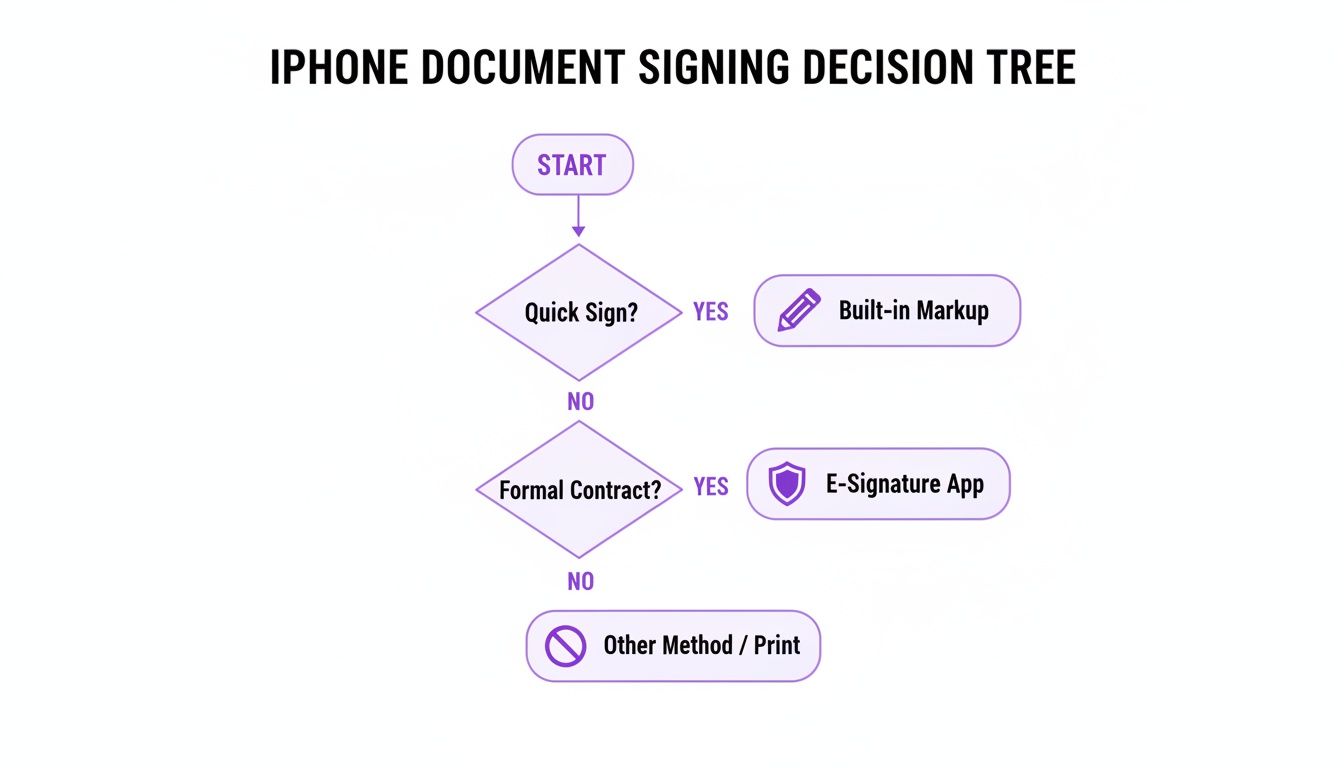
The decision really boils down to the document's purpose. What's at stake if things go sideways?
A simple signature works perfectly for internal approvals or low-stakes forms. But for critical agreements, like client contracts, property leases, or employment offers, you absolutely need the security and detailed audit trail that only a specialised e-signature platform can provide. It's about making sure your agreements are not just signed, but legally solid.
iPhone Signing Methods at a Glance
So, when do you use your iPhone’s free tool versus a paid app? Here’s a quick comparison to help you decide.
| Feature | Built-in Markup Tool | Dedicated e-Signature App |
|---|---|---|
| Best For | Quick, informal documents (e.g., invoices, permission slips) | Legally binding contracts (e.g., sales, employment) |
| Security | Basic; signature is just an image overlay | High; includes encryption, audit trails, identity verification |
| Legal Validity | Limited; may not hold up in court for major contracts | Strong; compliant with e-signature laws (e.g., ETA 1999) |
| Audit Trail | None | Detailed record of who signed, when, and where |
| Cost | Free (included with iOS) | Subscription-based (monthly or annual fees) |
| Ease of Use | Very easy; just tap and sign | Easy, but requires app setup and account creation |
Ultimately, Markup is your go-to for speed on everyday tasks. For anything that protects you or your business, investing in a proper e-signature service is non-negotiable.
Using the iPhone Markup Tool for Instant Signatures
When a document lands in your inbox and needs a quick signature, you don't need a fancy app. Your iPhone has a surprisingly powerful tool built right in called Markup, and it's the fastest way to get the job done.
I find myself using it all the time for things like signing off on a contractor's quote or quickly approving an internal form while I'm on the train. Because it's integrated directly into Mail, Files, and even Photos, there’s nothing extra to download. Just open the document, and you're ready to go.
The best part? Your iPhone saves your signature. After you create it once, it's always there, ready to be dropped into the next document with a couple of taps. You can easily drag it into place and resize it to fit perfectly on any signature line, so it always looks neat and tidy.
Creating and Placing Your First Signature
So, how do you actually do it? It’s genuinely straightforward.
Open up a PDF in an app like Mail or Files and look for the Markup icon - it looks like a pen tip in a circle. Tap that, and a toolbar will appear at the bottom of your screen. From there, tap the little plus (+) sign and choose 'Signature' from the pop-up menu.
The first time around, you’ll get a blank canvas to draw your signature with your finger. Take a moment to get it right, then hit 'Done'. Your signature is now saved and ready to be placed. Just drag it to the right spot on the document and use the blue corner dots to shrink or enlarge it.
Here’s exactly what that menu looks like, so you know what to look for.
Once it's in place, tap 'Done' again. You’ll then get the option to save the newly signed file or, if you're in Mail, to reply with the signed version attached. Simple as that.
Tips for a Professional Finish
Markup is brilliant for convenience, but a little care goes a long way in making sure your signature looks professional rather than rushed. My biggest tip is to zoom right in on the document before placing your signature. This helps you line it up perfectly on the dotted line, avoiding that awkward 'floating' look.
It’s also worth noting you can change the ink colour. The default is black, but a quick tap on the signature box lets you switch to blue or another colour to match the rest of the document's text.
For a more detailed look at the wider world of digital signatures and document management, our guide on how to electronically sign a PDF document is a great next step.
Here are a few other things I always keep in mind:
- Create a clean signature: When you first draw your signature, rest your phone on a table. It's much easier to get a smooth, clean result than trying to do it on the move.
- Resize proportionally: Always, always use the corner handles to resize. If you use the side handles, your signature will end up looking squashed or stretched.
- Save and share correctly: Double-check that you're saving the finalised version. It's easy to accidentally send the original, unsigned document back if you're in a hurry.
Understanding Legally Binding Electronic Signatures
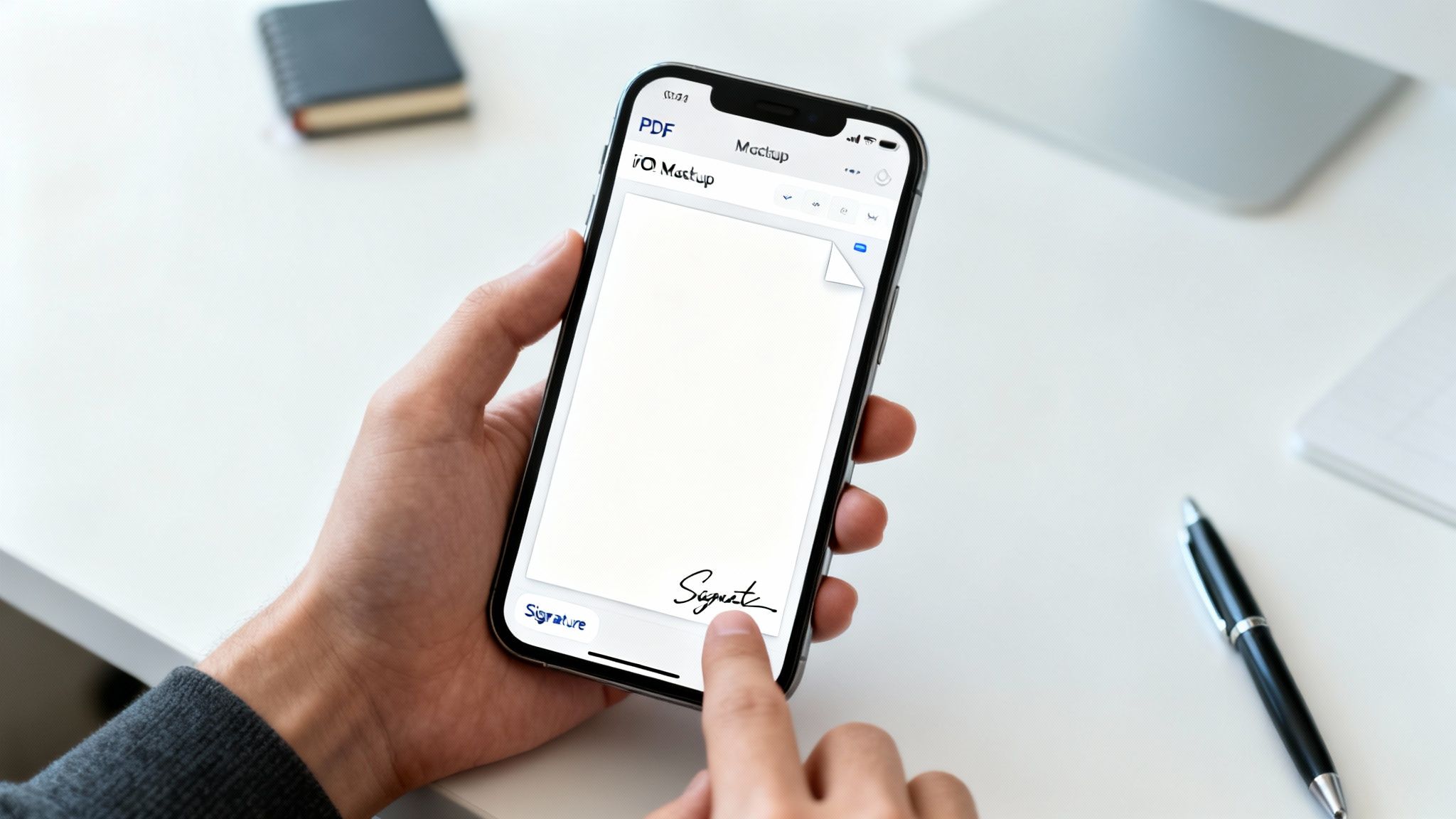
That simple signature you added with the Markup tool is perfect for casual approvals, like signing off on a team lunch order. But what about when you’re dealing with a major client contract or a legally important agreement? This is where you need to know the difference between a basic scribble on a screen and a truly legally binding electronic signature.
In Australia, the Electronic Transactions Act 1999 is the legislation that gives e-signatures their legal weight. It sets out the rules that make them enforceable, but there are specific conditions that have to be met. Just dropping a picture of your signature into a PDF doesn't cut it for a secure, binding agreement.
This distinction really matters. Imagine a Sydney-based agency finalising a huge proposal; a quick sign-off is handy, but it's the legal integrity that counts. With iPhones holding a massive 40% market share Down Under, it’s no surprise the local digital signature market is projected to skyrocket from USD 117.1 million in 2024 to USD 891.1 million by 2030. If you want a deeper look at the technology and legal side of things, it’s worth exploring the concept of electronic signatures (e-signatures).
What Makes an E-Signature Legally Sound
For an electronic signature to hold up in Australia, it needs to tick a few important boxes. It’s not just about the signature itself but the whole process behind it.
A proper e-signature platform does much more than just paste an image onto a document. It creates a tamper-evident seal and a complete audit trail that logs every single interaction, giving you solid proof of who agreed to what, and when.
Here are the key components you absolutely need:
- Consent to Sign: Everyone involved has to clearly agree to do business electronically.
- Identity Verification: You need a reliable way to confirm who the signer is and connect them directly to that signature.
- Secure Audit Trail: A detailed log must track who signed, the exact time and date, their location, and any changes made to the document. This is something the built-in Markup tool simply can't do.
Getting your head around the difference between a simple digital signature and a secure electronic one is crucial for protecting your business. We break it down even further in our article comparing a digital signature vs electronic signature.
Choosing an E-Signature App for Professional Workflows
While the iPhone’s built-in Markup is great for quickly initialling a document, professional work demands a lot more power, security, and traceability. This is where dedicated e-signature apps really shine, transforming a simple signature into a managed, legally sound process.
Think of it this way: these platforms aren't just for dropping an image of your signature onto a page. They give you a full suite of tools for running your business. You can send documents to multiple people, set the signing order, track who has and hasn't signed with real-time updates, and automatically fire off a completed copy to everyone once it's done.
Beyond the Signature: A Secure Audit Trail
Probably the biggest leap forward when using a professional e-signature app is the robust, cryptographic audit trail it creates. This isn't just a simple record of a signature; it’s a tamper-evident certificate that captures every single interaction with the document from start to finish.
This detailed log includes all the crucial info you’d need for legal and compliance purposes:
- Signer Identity: Confirmed through their email or other verification methods.
- Timestamps: The exact date and time of every action, from opening the document to the final signature.
- IP Addresses: The location from which the document was accessed.
- Document History: A complete log of any changes or actions taken during the signing process.
This level of detail is absolutely essential for high-stakes agreements. It provides undeniable proof of consent that the basic Markup tool simply can't match.
Features for Australian Businesses
When you're shopping around for an app, it pays to look for features that are built for Australian business needs. That means finding platforms that handle AUD and GST correctly on invoices, and ideally, connect with local accounting software like Xero or MYOB. It's all about how you transform your iPhone into a powerful business platform to make your work life easier.
The mobile-first approach is key. A Melbourne-based accountant, for example, will tell you that getting client approvals on their iPhone during tax season is a non-negotiable. It's no surprise that Australia's digital signature market, valued at USD 235.2 million in 2024, is expected to grow as more business gets done on the go.
Moving from Markup to a dedicated app isn't just about convenience. It’s about professionalism, security, and legal peace of mind, ensuring every agreement you sign is properly protected.
For businesses looking to really embed this into their operations, an all-in-one platform with built-in https://www.payly.com.au/e-signature can be a game-changer. It streamlines the entire workflow, from creating the document right through to getting it securely signed and archived, saving a heap of time on admin.
Hitting a Snag? How to Troubleshoot iPhone Signing Problems
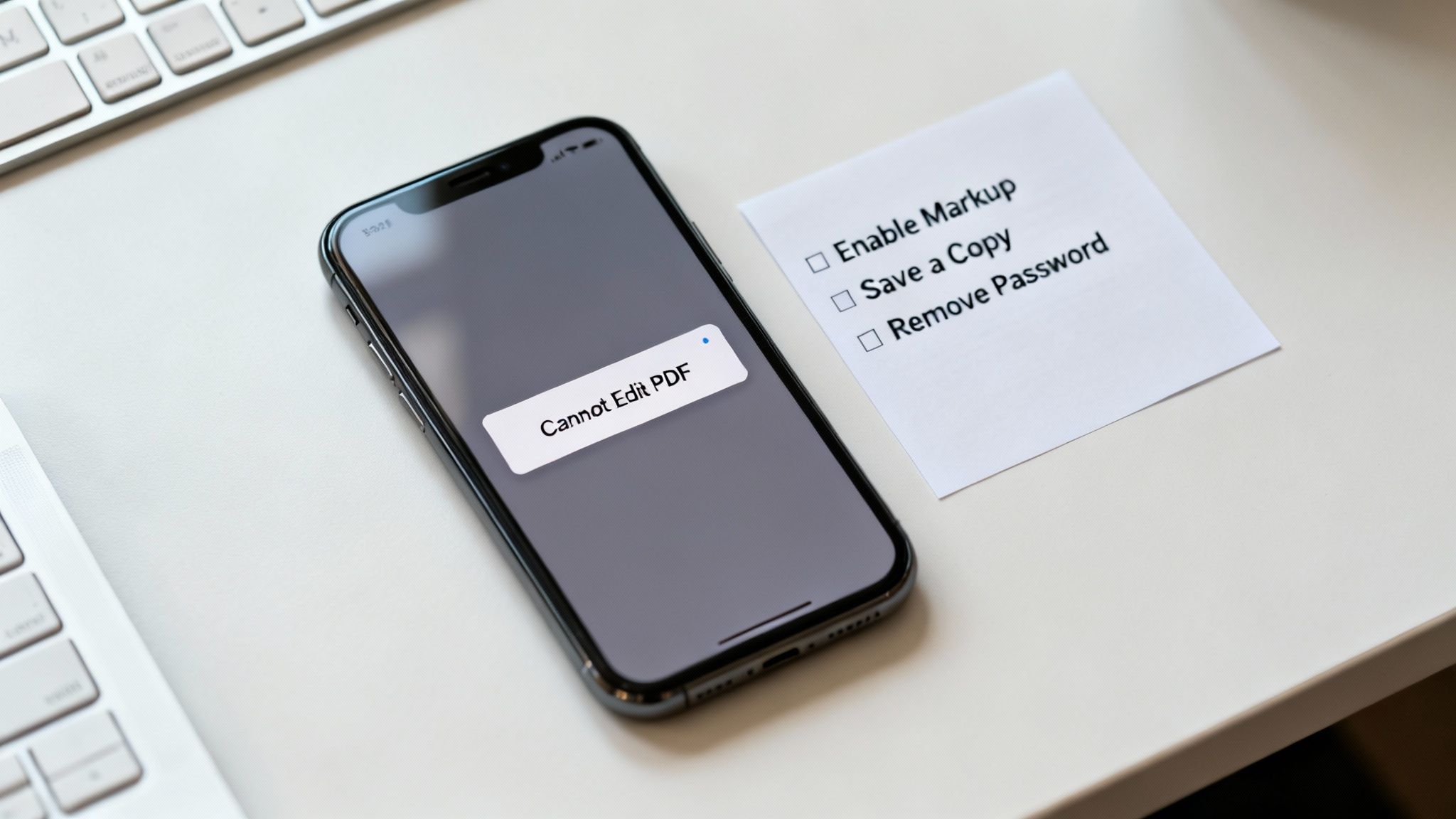
Even with the slickest process, technology can throw a curveball. You open a document, ready to sign, but the Markup toolbar is nowhere to be found. What gives? More often than not, this means the file isn't a PDF or has been locked to prevent edits.
Another classic frustration is when your signed document refuses to save properly. I've seen this happen when the file is massive or when my iPhone's storage is hitting its limit. A quick restart of your phone or clearing out some old photos and files usually gets things moving again.
Dealing with Locked-Down PDFs
Sometimes the issue isn't your iPhone at all; it's the document itself. PDFs can be password-protected to stop people from making changes, and that includes adding a signature.
If a document just won't let you sign, the first thing to check is whether it’s locked. You'll need to ask the sender for the password to unlock it before you can use Markup. Without that password, you’re completely stuck.
My number one tip? If you hit a wall, suspect a restricted PDF first. A quick message to the sender asking if the document is password-protected can save you a world of frustration. It’s the most common culprit and the easiest to solve once you know what to ask.
Your Top Questions About iPhone Signatures Answered
When it comes to signing documents on your iPhone, a few common questions always seem to pop up, especially around legal validity and security. Let's tackle them head-on with some practical, real-world advice.
Is a Signature Made With the Markup Tool Actually Legally Binding?
This is the big one, and the answer is nuanced. A signature you draw using the iPhone's Markup tool is really just an image of your signature placed onto a document.
For something low-risk, like signing off on a team lunch order or a school permission slip, it’s usually perfectly fine. It shows you intended to sign.
However, when the stakes are higher, such as client contracts, financial agreements, or any formal legal document, that simple image won't cut it. It lacks the secure audit trail and identity verification required under Australia's Electronic Transactions Act 1999. To be safe and ensure your signature is enforceable, you absolutely need to use a proper e-signature platform for important business.
Key takeaway: Markup shows you placed a signature. A dedicated e-signature service proves who signed, when they signed, and confirms the document is tamper-proof. That distinction is everything in a business context.
I've Been Sent a Word Document or an Image to Sign. Now What?
The native Markup feature is built for PDFs, so if you get a Word file (.docx) or an image (like a .jpg or .png), you need a quick workaround.
You’ve got two main paths:
- The PDF Conversion Trick: This is the easiest built-in method. Open the file, tap the Share icon, and choose Print. Instead of actually printing, just pinch outwards on the preview screen. This neat little trick instantly turns the file into a PDF, which you can then save to your Files and open in Markup to sign.
- Use a Proper Signing App: Frankly, this is the better option for professional use. E-signature apps are designed to handle almost any file type you throw at them. Just upload the Word doc or image directly into the app and sign away; no conversion needed.
How Can I Be Sure My Signature Is Secure?
The level of security really boils down to the tool you’re using.
A signature added with Markup is only as secure as your device and the file itself. It can be copied, edited, or removed without much effort, offering very little protection.
On the other hand, professional e-signature platforms are built for security. They use things like bank-level encryption to protect the document from the moment you upload it. Once signed, they create a tamper-evident seal. This means if anyone tries to alter the document after signing, it will be flagged. You also get a comprehensive, legally admissible audit trail tracking every single interaction with the document. That's true peace of mind.
Ready to move beyond basic signatures? Payly helps you manage time tracking, invoicing, and secure document signing in a single platform designed for Australian businesses. See how it all works with a free 14-day trial at https://www.payly.com.au today.
Payly Team
Sharing insights and strategies to help service businesses thrive. Follow Payly for more tips on time tracking, invoicing, and business operations.
Related Articles

Ready to streamline your business?
Join thousands of freelancers and agencies who use Payly to track time, send invoices, and get paid faster.