
How do i digitally sign a pdf: 2026 quick guide for Australians
Discover how do i digitally sign a pdf in 2026: A quick guide for Australians with free tools and practical steps.
Payly Team
February 25, 2026
Digitally signing a PDF isn't just about putting your name on a document. It's about creating a unique, encrypted 'fingerprint' using a certificate-based digital ID. This process does two crucial things: it confirms it was you who signed it and locks the document to prevent any sneaky edits later on.
The good news? For most everyday signing tasks, you probably already have the tools you need. Software like Adobe Acrobat Reader or even the Preview app on a Mac can get the job done without costing you a cent.
Why Digital Signatures Are Essential for Modern Business
In the fast-paced Australian business scene, clinging to paper contracts just slows everything down. Sure, signing digitally is quicker, but it's much more than a time-saver. It's a massive operational upgrade. Digital signatures are key to securing your cash flow and showing clients you mean business.
Think about it from the perspective of a freelance designer. They could lock in a new project and its payment terms in minutes, instead of getting stuck in the old cycle of printing, posting, waiting, and scanning. That’s a game-changer.
A simple scanned signature is really just a picture of your handwriting dropped onto a file, offering almost no real security. A proper digital signature, on the other hand, provides a powerful, cryptographic audit trail. This secure method verifies who signed, when they signed, and makes it obvious if the document has been tampered with since.
If you want to get into the nitty-gritty, you can learn more about what a digital signature is in our detailed guide.
Securing Your Agreements and Cash Flow
The biggest drawcard for a true digital signature is its security. This robust verification is precisely why the market is booming. In fact, the Australian digital signature market is projected to hit USD 3.34 billion by 2034, largely thanks to freelancers and small businesses needing more secure ways to sign PDFs.
A digital signature is more than just a convenience; it’s a commitment to security and efficiency. It tells your clients that you value their time and take your agreements seriously, building trust from the very first interaction.
This level of security ensures your agreements are legally sound and helps you get paid faster by cutting out all the physical paperwork hurdles.
The impact is huge in high-stakes industries. For example, a smooth e-signature for real estate process can speed up property deals significantly while making the documents far more secure. For any professional, it means less time chasing paper and more time delivering great work, which is always good for the bottom line.
Comparing Digital Signatures E-Signatures and Scanned Signatures
It's easy to get these terms mixed up, but the differences are critical, especially when it comes to legal and security matters. A scanned signature is just an image, while electronic and digital signatures are in a completely different league.
Here’s a quick breakdown to help you understand the key distinctions:
| Feature | Digital Signature | Electronic Signature | Scanned Signature (Image) |
|---|---|---|---|
| Security Level | Very High (Cryptographic encryption) | Variable (Depends on provider) | Very Low (Easily forged) |
| Identity Verification | Certificate-based ID verification | Email, IP address, password, etc. | None |
| Tamper-Evident | Yes (Locks the document after signing) | Often, but not always | No (Document can be easily altered) |
| Legal Standing (AU) | Strongest legal evidence | Generally legally binding | Weakest legal evidence, easily disputed |
| Common Use Case | High-value contracts, legal documents | Everyday agreements, NDAs, quotes | Informal, low-risk confirmations |
Ultimately, choosing the right method comes down to the importance of the document you're signing. While a scanned signature might be okay for an internal memo, a digital signature provides the gold standard of security and legal validity you need for client contracts and critical agreements.
How to Sign a PDF with Free Tools You Already Own
You don't always need to pay for a specialised service just to sign a one-off document. Chances are, you already have free software on your computer that can get the job done. These tools are perfect for when you just need to quickly sign a PDF without the hassle of setting up a new account or starting a subscription.
It's important to understand that these methods create a basic electronic signature. Think of it like placing a verified image of your signature onto the document. This is different from the more secure, certificate-based digital signatures we talked about earlier. For many day-to-day agreements, though, an electronic signature is quick, easy, and perfectly sufficient.
The infographic below helps visualise the difference, showing the progression from a simple scanned signature to a secure, tamper-evident digital one. The free tools we're about to cover fall squarely in the middle.
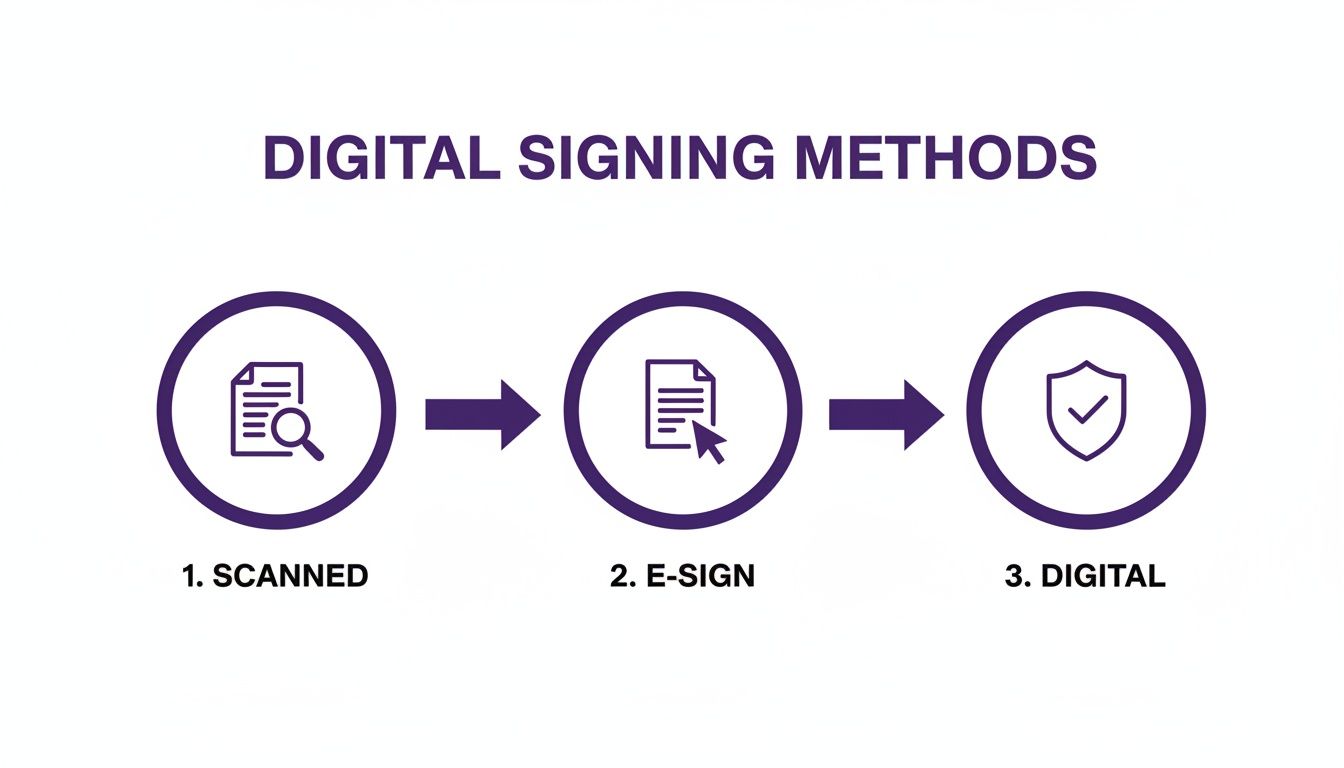
As you can see, a scanned signature is just an image, an e-sign adds an electronic process, and a true digital signature creates a secure seal. Let's look at how to create an effective e-sign with software you probably already have.
Using Adobe Acrobat Reader DC
As the global standard for PDFs, the free version of Adobe Acrobat Reader is a reliable and powerful option for both Windows and Mac users. Getting your signature onto a document is incredibly straightforward.
First up, open your PDF in Adobe Reader. Find the "Sign" tool, which usually looks like a fountain pen icon in the right-hand toolbar. If you can't spot it, just head to the "Tools" tab to find it.
Once you click it, you'll get a prompt to "Add Signature". This gives you three simple choices:
- Type: Just type your name, and Adobe will convert it into a selection of neat, cursive-style fonts.
- Draw: Use your mouse or trackpad to draw your signature directly on the screen. It can take a bit of practice!
- Image: If you've already got a picture of your signature (like a photo or scan from a piece of paper), you can upload it.
After you've created your signature, Adobe handily saves it for next time. You can then click anywhere on the document to place it, and easily resize or move it before you save the final version.
Signing PDFs on macOS with Preview
If you’re on a Mac, you’re in luck. A fantastic tool is built right into the operating system. The Preview app is much more than a simple file viewer; it has excellent markup features, including a slick way to create and apply signatures.
To get started, just open your PDF in Preview. Click the "Markup" button (it looks like a pen tip inside a circle) to bring up the Markup Toolbar. From there, select the "Sign" button.
The first time you use this, Preview will guide you through creating a signature. You can either draw it with your trackpad or, my personal favourite for a more accurate result, sign your name clearly on a white piece of paper and hold it up to your Mac's camera. Preview captures and digitises it almost instantly.
Once your signature is saved, you just select it from the Sign menu and click on the PDF to place it. Just like with Adobe, you can drag and resize the signature to fit perfectly on the dotted line.
How to Sign a PDF in Microsoft Edge
Believe it or not, even your web browser can get in on the action. Microsoft Edge, the default browser on Windows, includes a native PDF viewer with a simple signing tool. This is a brilliant option if a document lands in your inbox and you want to sign it without even opening another program.
Open the PDF directly in your Edge browser. At the top of the document, you'll see a toolbar appear. Look for the "Draw" button.
Selecting this tool lets you use your mouse, a stylus, or even your finger (on a touchscreen) to sign your name directly onto the PDF. You can even choose your ink colour and thickness. While it’s less formal than a saved signature in Adobe or Preview, it's incredibly fast for quick jobs and on-the-spot approvals.
Using a Dedicated Platform for a Professional Workflow
The free tools we've covered are fantastic for signing the odd document here and there. But when your business starts to rely on signed agreements day in and day out, things change. Suddenly, you're not just signing a PDF; you're managing contracts, onboarding staff, and finalising service agreements. At that point, you need a proper system, not just a quick-fix tool.
This is where dedicated e-signature platforms really come into their own. They move beyond simply pasting an image of your signature onto a file. Instead, they give you a secure, repeatable, and fully auditable process that the free options just can't compete with. For any Australian service business looking to scale, this shift is crucial. It's about moving from a reactive signing habit to a proactive document management strategy.
Here’s a look at the Payly dashboard, where document signing is built right into the core of your business operations.
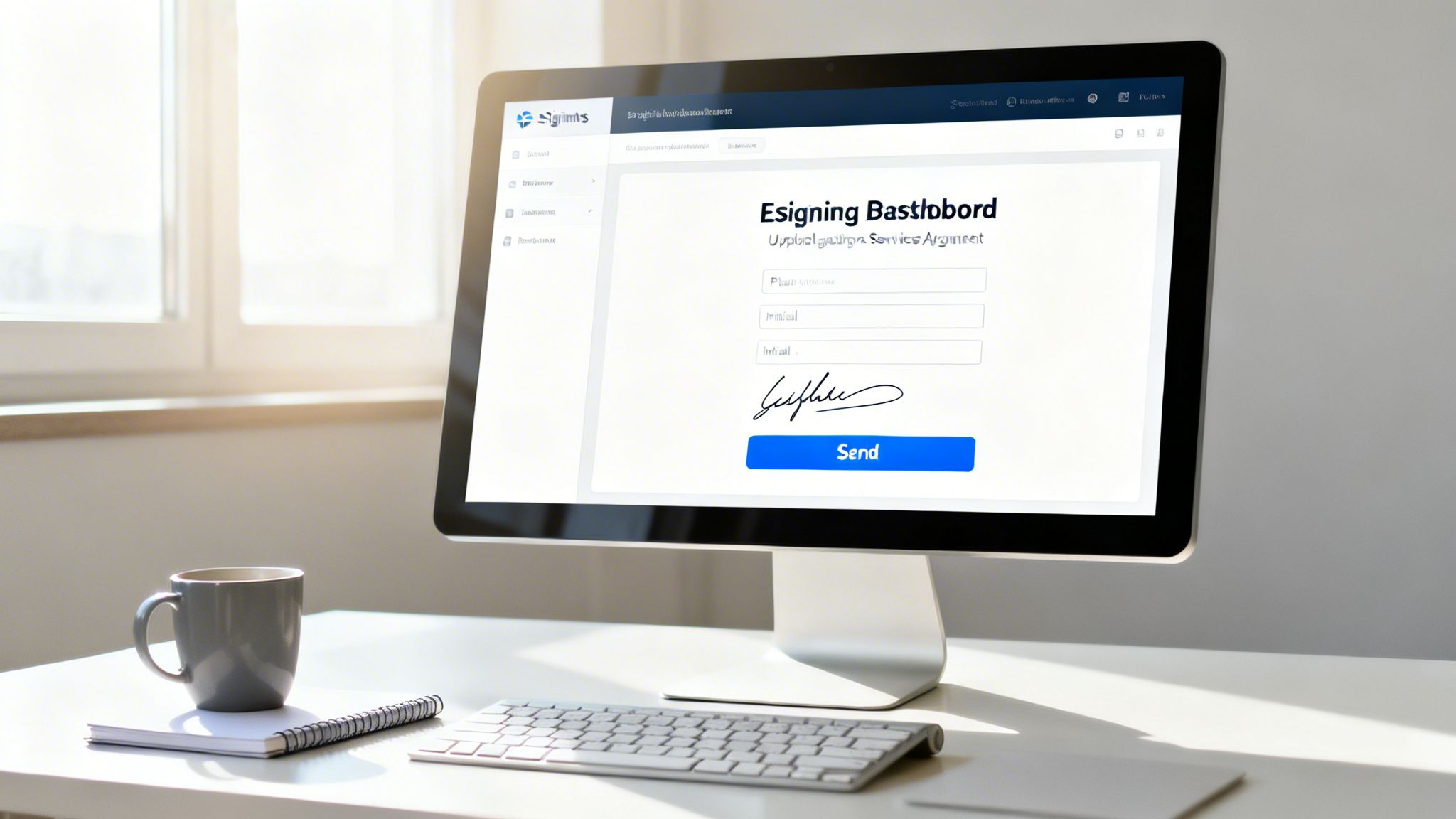
The idea is to stop the constant app-switching. Instead of jumping between your invoicing software, your timesheet tool, and a separate signing app, everything is in one place.
Streamlining the Entire Document Process
Let's walk through a common scenario: sending a service agreement to a new client. With a platform like Payly, the whole process is incredibly smooth. You start by uploading your standard PDF agreement. From there, you can literally drag and drop interactive fields exactly where you need them.
This isn't just about marking a spot for a signature. You can get really specific.
- Initials: Drop these on key pages to make sure the client has actually read and acknowledged important clauses.
- Dates: Add a date field that automatically fills in the moment they sign. No more chasing up incorrect dates.
- Text boxes: Need the client to provide their ABN, address, or other details? Add a field for it.
This guided approach takes all the guesswork out of it for your clients. They see exactly where to click and what information to provide, which massively cuts down on errors and speeds up the whole process. Once you’ve prepped the document, you fire it off to their email directly from the platform.
The real game-changer isn't just sending the document; it's the complete visibility you gain. You can see precisely when your client has opened the agreement and get an instant notification the second it’s signed. That means you can get started on their project immediately, without any delays.
Beyond the Signature: A Secure Audit Trail
One of the biggest differentiators with a professional platform is the cryptographic audit trail. This is much more than a simple note saying a document was signed. It’s a secure, tamper-evident log that captures a huge amount of detail behind the scenes.
Typically, this audit trail will record:
- The signer's email address
- The IP address they used when signing
- Precise timestamps for every single action (e.g., when it was viewed, signed, and finalised)
- A unique cryptographic hash that proves the document hasn't been altered
This detailed log provides powerful legal evidence, giving you real confidence that your agreements are robust and will hold up if ever questioned.
By tying e-signatures directly into your project management and invoicing, you create a single, unified record for every client relationship. This level of integration is a core part of what makes effective document management software for Australian businesses so valuable. It eliminates administrative headaches, ensures everything is accurate, and lets you run a professional, secure operation from start to finish.
Navigating the Legality of Digital Signatures in Australia
When you're figuring out how to digitally sign a PDF, the real question bubbling under the surface is usually, "Will this actually hold up legally?" It's a great question, and for anyone doing business in Australia, the answer is a clear and confident yes. We have a solid legal framework that lets you finalise contracts and agreements without ever touching a piece of paper.
This legal certainty comes from the Electronic Transactions Acts. There's a Commonwealth version and state-level versions, but they all fundamentally do the same thing: give electronic signatures the same weight as their handwritten, 'wet ink' counterparts. So, a correctly applied digital signature on a PDF is just as valid as one signed with a pen.
That said, it’s not a free-for-all. There are a few important boxes you need to tick to ensure your e-signature is legally binding.
Core Legal Requirements
For an electronic signature to be considered valid under Australian law, it really boils down to three key principles. Think of them as the pillars that ensure reliability, consent, and integrity.
The law basically says you must have:
- A Clear Identity: You need a reliable way to identify the person signing and to show they intended to be bound by what they signed.
- Clear Consent: The signer must have agreed to do business and sign documents electronically. This is often handled in the terms or the initial email exchange.
- A Secure Document: The method you use must ensure the document is protected from being changed after it has been signed.
This is where the difference between simply pasting an image of your signature and using a proper digital signature becomes so important.
A secure digital signature is more than just a picture; it’s backed by a cryptographic audit trail specifically designed to meet these legal requirements. It provides strong evidence of who signed, when they signed, and confirms the document is authentic and hasn't been tampered with.
The Power of an Audit Trail
If you’re a freelancer or run a small business, your main concern is proof. Let’s say a dispute comes up months down the track. How can you prove who actually signed your service agreement and when they did it? This is exactly why using a platform like Payly provides such a crucial layer of security.
Every document processed through a professional e-signature system generates a detailed audit trail. This isn't just a simple timestamp. It’s a comprehensive, tamper-evident log that records key information like the signer’s IP address, their email, and a complete timeline of every action they took, from opening the document to finalising their signature.
This log becomes your rock-solid evidence, showing that you used a reliable method to capture the signature. It directly satisfies the legal need to prove the signer's identity and intent, giving you total peace of mind. It effectively transforms your signed PDF from a simple file into a secure, legally-enforceable agreement.
Preparing Your PDF for a Seamless Signing Experience
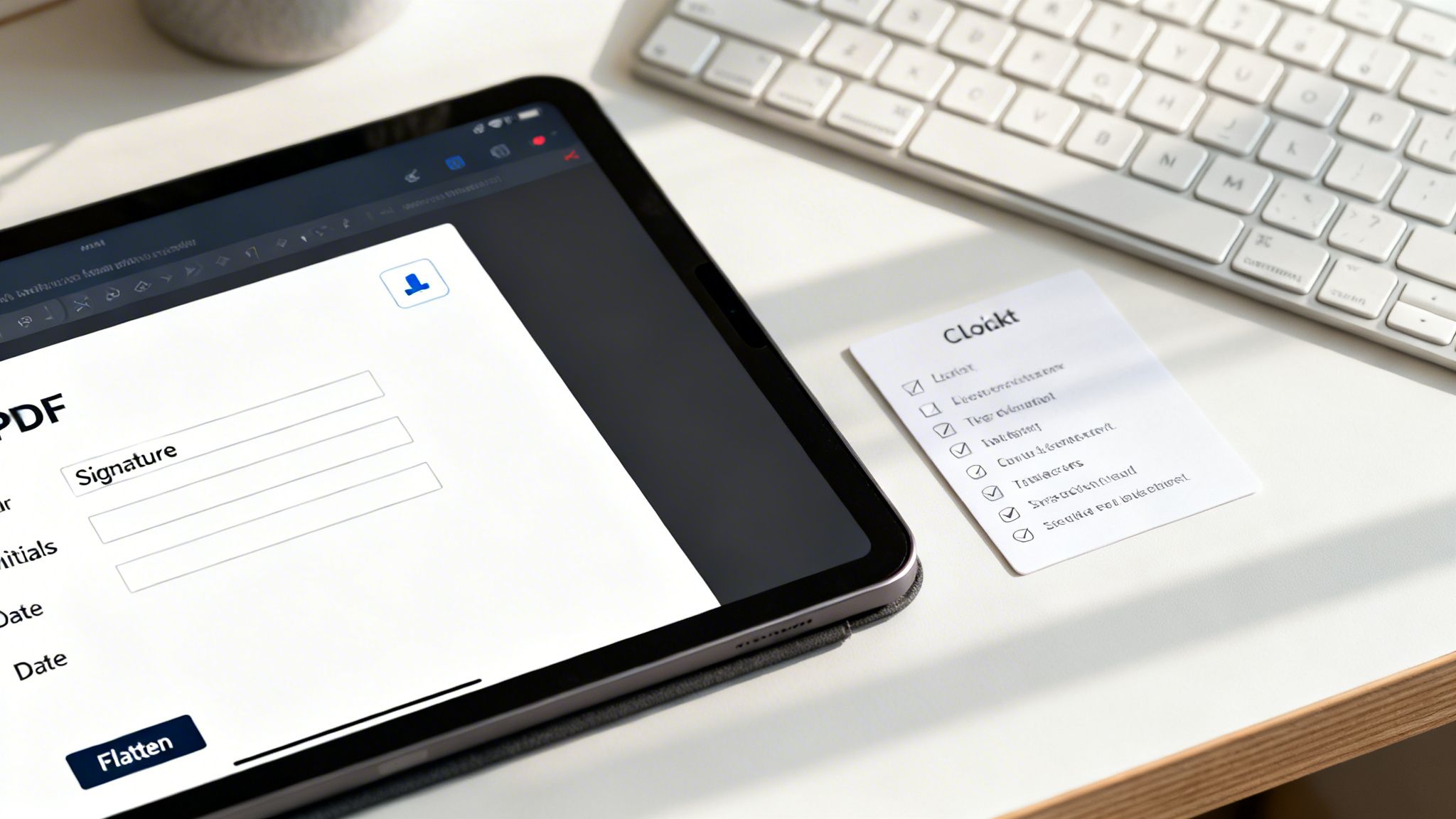
Before you fire off a document for signature, taking a few minutes to prepare it can make all the difference. A well-prepped PDF avoids technical headaches and makes it dead simple for your client to sign, which means you get your agreements finalised much faster.
The whole point is to remove any guesswork. If a client has to squint to figure out where to sign or what details to add, you’re just creating friction and unnecessary delays. Setting up the document properly from the start is a small touch that shows you’re professional and that you value their time.
Of course, before any signing can happen, your document usually needs to be a PDF. If you're starting with a Word doc, a crucial first step is to convert Word to PDF.
Add Clear Form Fields
The single most important thing you can do is add interactive form fields. Instead of sending a flat document and just hoping the recipient knows where to click, you can guide them to the exact spot. This is a built-in feature in dedicated platforms like Payly.
Think about using specific fields for each action:
- Signature Fields: Pinpoint the exact line where their signature needs to go.
- Initial Fields: Pop these next to key clauses to confirm they've been read and understood.
- Date Fields: Many platforms let you set these to auto-fill the date as soon as it's signed.
- Text Fields: Perfect for collecting necessary info like an ABN, job title, or contact number.
Taking the time to do this prevents all sorts of common mistakes, like a signature accidentally covering important text or a client forgetting to date the agreement. If you want to get into the nitty-gritty, our other guide explains how to create an editable PDF form in more detail.
Proactively setting up clear, designated fields for signatures and dates does more than just look professional. It actively reduces the back-and-forth emails and follow-ups by up to 50%, accelerating your project kick-off.
Lock Down Your Document
Once an agreement is signed, its integrity is everything. You have to be certain that the document can't be altered later on. A great way to do this is by flattening the PDF, which basically merges all the different layers, like annotations, form fields, and images, into one single, uneditable layer.
It’s also smart to double-check the PDF's security settings. Some documents have built-in restrictions that might prevent signing or editing. Always give these permissions a quick look before you send the document out, especially if you’re using a template from a third party. A quick glance at the document properties can save both you and your client a major headache down the road.
Even the smoothest processes can hit a bump in the road. When you're trying to get a contract over the line, the last thing you need is a technical glitch holding things up. Luckily, most issues you’ll run into when trying to digitally sign a PDF are pretty common and usually have a simple fix.
More often than not, the problem isn't some deep technical mystery. It could be something as straightforward as the document's own security settings getting in the way, or the software itself just having a momentary hiccup. Knowing what to look for means you can sort these frustrations out fast and get back to business.
Why Can’t I Click the Signature Field?
This is easily one of the most frequent frustrations I hear about. Your client opens the PDF, they can see exactly where their signature needs to go, but clicking on the field does absolutely nothing. This almost always points to an issue with the PDF file itself, not the program they're using to view it.
The most likely culprit is a secured or locked PDF. The person who created the document might have set permissions that prevent any edits or signing. You can usually check this by going into the document’s properties (look for "File" > "Properties" > "Security"). If it's locked, you'll need the password to remove the restrictions.
Another common reason is that it's not a real form field at all. Someone might have just typed a line of underscores ___________ onto a standard, "flat" document. In this situation, the signing tools built into programs like Adobe Acrobat Reader or macOS Preview can still save the day. You just have to manually place your signature on top of the line instead of clicking into a field.
How Do I Fix a Blurry or Low-Quality Signature?
A pixelated or fuzzy signature just looks unprofessional. It happens when the original image you used to create your signature was too small or had a very low resolution. When you stretch a tiny image to fit a signature line, it’s always going to look blurry.
The solution is to simply recreate your signature using a much higher-quality source.
- Draw it again: If you're using a trackpad or mouse, take your time and draw a new, smoother version.
- Scan a better image: This is my preferred method. Sign your name clearly with a good, dark pen on a clean white sheet of paper. Then, take a photo in good light with your smartphone. This high-resolution image will look sharp and professional when you upload it.
A crisp, clear signature is one of those small details that reinforces your professionalism. Taking a moment to get it right ensures every document you send out looks its best and reflects well on your brand.
Got Questions About Signing PDFs? We've Got Answers
Still a bit unsure about the ins and outs of digitally signing PDFs in Australia? That's completely normal. Let's tackle some of the most common questions we hear from business owners.
What’s the Real Difference Between a Digital and an Electronic Signature?
It's easy to get these two mixed up, but the distinction is pretty important. Think of an electronic signature as a broad category. It could be as simple as typing your name at the bottom of an email or ticking an "I agree" box online. It shows intent, but that's about it.
A digital signature, on the other hand, is a specific, highly secure type of electronic signature. It uses complex encryption and a unique, certificate-based digital ID to create a tamper-evident seal on the document.
For Australian businesses, this is a game-changer. It provides a rock-solid audit trail and far stronger legal proof of who signed what and when, making it much more reliable than a basic electronic signature.
Do I Really Need Special Software to Sign a PDF?
The answer really depends on what you're doing. If you just need to sign a one-off document for yourself, the free tools already on your computer, like Adobe Acrobat Reader or macOS Preview, will do the job perfectly well.
However, the moment you start sending documents to clients for their signature, things change. If you need to track when they've opened it, send reminders, and maintain a legally sound record of the entire process, a dedicated e-signature platform becomes essential. It’s about managing the entire workflow securely and professionally, not just adding a signature.
Can I Sign a PDF on My Mobile Here in Australia?
Absolutely. Any modern e-signature platform worth its salt is built for mobile. You can easily open and sign a document someone sends you, or even create and send out your own contracts for signing, all from your smartphone.
This is a lifesaver for business owners on the go. You no longer have to be chained to your desk to keep deals moving forward.
Ready to stop switching between five different apps just to get a contract signed and paid? Payly brings e-signatures, invoicing, and time tracking together in one seamless platform built for Australian businesses. Start your free 14-day trial today.
Payly Team
Sharing insights and strategies to help service businesses thrive. Follow Payly for more tips on time tracking, invoicing, and business operations.
Related Articles
Ready to streamline your business?
Join thousands of freelancers and agencies who use Payly to track time, send invoices, and get paid faster.