
How Do You Digitally Sign a PDF A Practical Guide
Learn how do you digitally sign a PDF on any device. Our guide covers secure, legally valid options for Australian businesses and professionals.
Payly Team
December 28, 2025
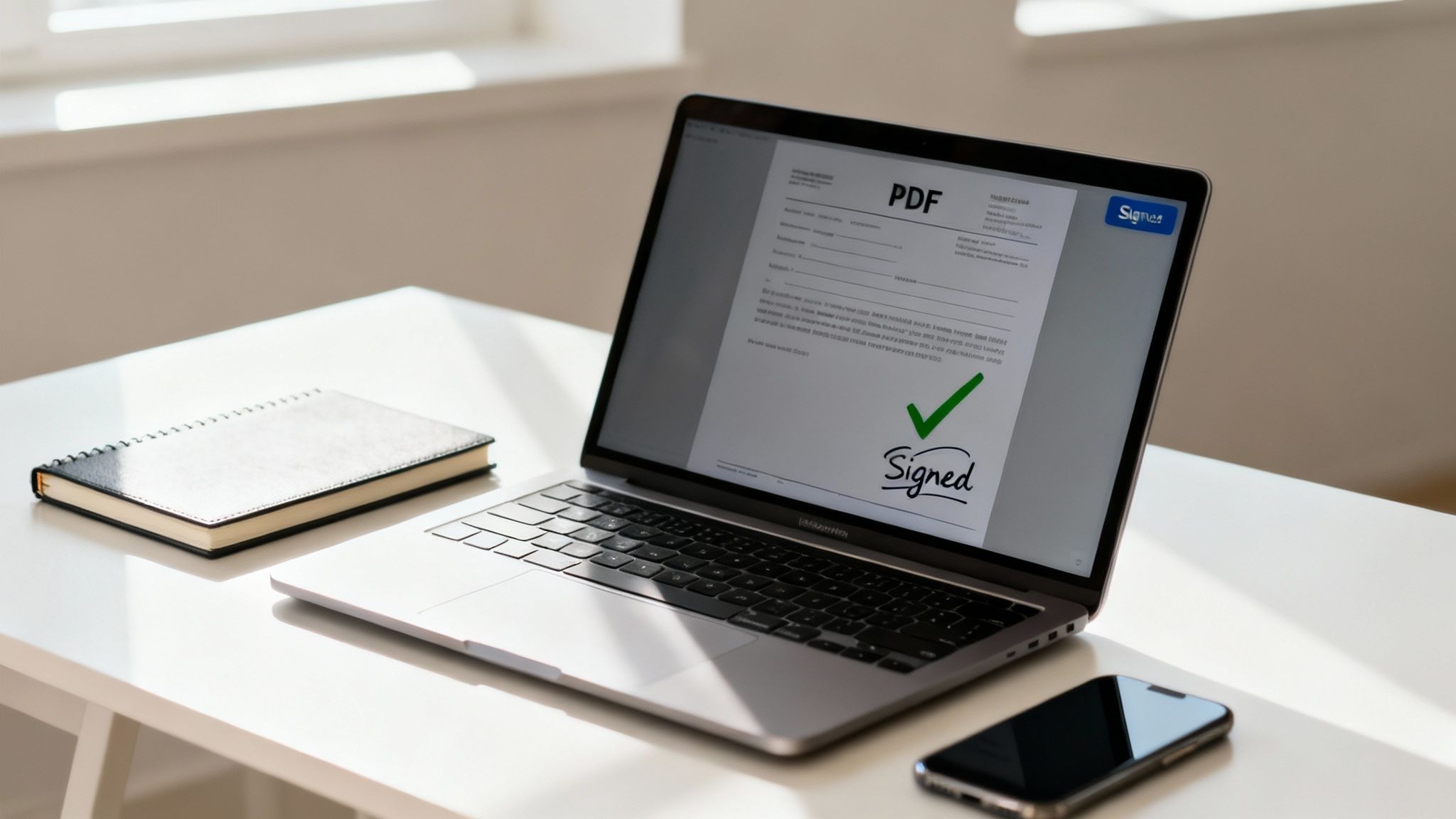
You've got a few options when it comes to digitally signing a PDF. You could use software already on your computer, like Adobe Acrobat Reader or macOS's built-in Preview app. Or, for something with a bit more security and a clear audit trail, you can turn to a dedicated platform. The best choice really hangs on what you need it for: a quick sign-off for a personal form, or a verifiable, legally sound solution for a critical business contract.
Why Print-Sign-Scan Is a Thing of the Past
For Australian freelancers and small agencies, ditching the old print, sign, and scan routine isn’t just about convenience anymore; it’s about staying competitive. The paper-based workflow is a classic bottleneck. It creates frustrating delays that can put projects on hold and, even worse, slow down your payments. Think about it: waiting days for a client to physically sign off on a proposal can completely kill your momentum.
This is exactly where digitally signing a PDF makes a huge difference. It removes all those physical roadblocks to getting work approved and projects rolling. Instead of fussing with printers, scanners, and postage, you can get contracts and agreements finalised in minutes, right from your laptop or phone. It’s less of a tech upgrade and more of a fundamental improvement to how you run your business.
Speed Up Your Business and Look More Professional
Let’s be honest, adopting digital signatures just looks better. When you send a client a document they can sign with a couple of clicks, you’re making their life easier and creating a smooth, professional experience right from the get-go. It’s a small touch that shows you respect their time and are serious about efficiency.
The practical perks have a direct impact on your cash flow and cut down on admin headaches.
- Get Projects Started Faster: You can get approvals and kick off projects on the same day instead of waiting for paperwork to snail-mail its way back to you.
- Get Paid Quicker: Invoices and service agreements signed instantly mean the payment cycle starts that much sooner.
- Slash Admin Costs: Forget about paying for printing, postage, and physical file storage. It all adds up.
- Seriously Better Security: A proper digital signature isn't just a picture of your name. It contains encrypted, verifiable data that proves who signed it and confirms the document hasn’t been tampered with since.
Before we dive deeper, it's worth clarifying a common point of confusion: the difference between a simple 'electronic' signature and a more robust 'digital' one. They aren't the same thing, and knowing the distinction is crucial for business contracts in Australia.
Digital vs Electronic Signatures at a Glance
| Feature | Electronic Signature (e.g., a scanned image) | Digital Signature (e.g., certificate-based) |
|---|---|---|
| What it is | A simple digital representation of a signature (like a JPEG). | A secure, encrypted signature using a unique digital ID. |
| Security | Low. Easy to copy, forge, or alter without detection. | High. Tamper-evident, with cryptographic security. |
| Verification | Difficult. Relies on context (like email trails) to prove intent. | Easy. Can be verified to confirm signer identity and document integrity. |
| Legal Standing (AU) | Can be valid, but often harder to prove authenticity in a dispute. | Strong legal standing under Australian law for most transactions. |
| Common Use | Informal agreements, internal approvals, personal documents. | Business contracts, financial agreements, legal documents. |
Ultimately, while an electronic signature is convenient for low-stakes situations, a digital signature provides the security and legal weight needed for professional client work.
Key Takeaway: The move towards secure digital transactions isn't just some passing trend; it's a massive market. In Australia, the growing demand for secure electronic authentication shows just how vital these tools have become for running a modern business.
A New Standard for Australian Business
The shift to digital document signing is backed by some serious numbers. The Australian Digital Signature Market was valued at USD 75.19 million and is expected to hit USD 783.47 million by 2032, growing at a compound annual growth rate (CAGR) of 34.04%. You can read more about the Australian digital signature market and its trends. This explosive growth makes it clear that digitally signing PDFs is now a cornerstone for freelancers and small agencies nationwide.
This rapid uptake is driven by the need for secure, verifiable, and legally recognised ways to do business from anywhere. For any service-based business in Australia today, knowing how to digitally sign a PDF properly isn’t just a handy skill; it’s an essential part of keeping your edge in a fast-moving market.
Signing PDFs on Your Windows PC, Mac, or Phone
Knowing how to e-sign a PDF is one of those skills that seems minor until you desperately need it. Thankfully, you don’t need any fancy software. The tools you need are probably already on the device you’re using right now. Whether you're at your desk or checking emails on the run, you can get contracts and agreements finalised in moments.
Let's walk through exactly how to do it on the platforms you use every day. Each one has its own way of handling signatures, but the core idea is the same: create your signature once, then apply it with a couple of clicks from then on. No more printing, signing, and scanning.
This is your practical guide to getting it done, focusing on the free, built-in tools you already have.
How to Sign a PDF on a Windows PC
For anyone on a Windows machine, the simplest path is usually Adobe Acrobat Reader. It’s the industry standard for a reason, and the free version has everything you need to create and apply a digital signature. If you don't have it, it's a quick download from Adobe's official site.
Once it's installed, the process is dead simple. The first time you do this, you’ll be prompted to create what Adobe calls a "digital ID." Think of it as your unique, secure stamp that verifies your signature on documents.
Ready? Open the PDF you need to sign in Adobe Acrobat Reader.
- Find the Fill & Sign tool. It’s usually sitting in the right-hand toolbar, but you can also just search for "Sign" in the main tools menu.
- Clicking that brings up a new toolbar. Look for the Sign icon (it looks like a little fountain pen) and choose Add Signature.
- A new window will pop up, giving you three ways to create your signature.
Just pick the one that feels right for you:
- Type: Just type your name, and Adobe will generate a few professional-looking signature fonts for you to choose from.
- Draw: Use your mouse or a touchscreen to draw your signature. It’s a bit more personal and what most people go for.
- Image: Already have a picture of your signature saved? You can upload it directly from a .jpg or .png file.
Before you finish, make sure to tick the Save Signature box. This saves you from having to repeat these steps every single time. Click Apply, and your signature will appear on the doc. You can drag it to the right spot, resize it, and click to place it for good.
Just remember to save the PDF one last time to lock in the changes.
Signing PDFs Natively on Your Mac
If you’re a Mac user, you’re in luck. You already have a fantastic tool built right into the operating system: Preview. There's absolutely no need to download anything else. Preview is the default app for PDFs and images on macOS, and its signature feature is incredibly slick.
The whole process feels like a natural part of the Mac experience, using your trackpad or camera to capture a signature that gets securely stored for later.
First, just double-click the PDF to open it in Preview.
Now, you need the Markup Toolbar. If you don’t see a row of editing tools at the top, click the little icon that looks like a pen tip in a circle.
Pro Tip: Once the Markup Toolbar is visible, look for the Signature icon. It looks like a little squiggle on a line. Click it to see your options.
The first time you do this, you'll need to create a signature. Preview has two really clever ways of handling this.
- Trackpad: This is my go-to. Just select this option and sign your name on the trackpad with your finger. It’s surprisingly accurate. Press any key when you're finished, then click Done.
- Camera: Sign your name with a black pen on a clean white piece of paper. Hold it up to your Mac's camera, and Preview will magically digitise it.
Once it's saved, all you have to do is click that Signature icon again and select your saved signature from the list. It’ll pop onto the document, ready for you to drag and resize. Hit save, and your signed PDF is ready to go.
Digitally Signing a PDF on Mobile Devices
In a world where business doesn't stop when you leave your desk, signing a PDF on your phone is essential. Whether you’re on an iPhone or an Android, there are great free tools available. The Adobe Acrobat Reader mobile app is probably the most consistent and reliable choice for both.
For iPhone and iPad Users
On an iPhone or iPad, you can actually use the built-in Markup feature, but for a consistent workflow across all your devices, the Adobe Reader app is hard to beat.
First, download the free Adobe Acrobat Reader app from the App Store. Open your PDF inside the app.
- Tap the big blue pencil icon in the bottom-right corner and select Fill & Sign.
- At the bottom of the screen, tap the fountain pen icon (the Sign tool).
- Choose Create Signature. Now you can just draw your signature right on the screen with your finger or a stylus.
- Tap Done, then tap anywhere on the document to place it.
You can move it around and resize it perfectly before locking it in. The app saves your signature automatically, making the next one you sign a two-tap job.
For Android Users
The process on Android is nearly identical, which is great because you don't have to learn a new system. Once again, the Adobe Acrobat Reader app from the Google Play Store is your best bet.
After you've installed it and opened your PDF, the steps will feel very familiar:
- Tap the Edit icon (the pencil).
- Select the Fill & Sign option.
- Tap the Sign tool.
- Choose Create Signature and draw your name.
Once saved, your signature is ready to drop onto any PDF. For freelancers or anyone running their own business, this is a game-changer. You can approve a proposal or sign off on a contract while waiting for a coffee, ensuring business never has to pause just because you're away from your computer.
A Secure Workflow for Signing Client Documents
While the built-in signing tools on your computer are handy for a one-off personal document, a growing Australian service business needs something more structured. When you're juggling multiple client agreements, you need a dedicated workflow that's not just efficient but also secure and legally solid. This is where stepping up to an integrated platform really changes the game.
Imagine a single, organised hub where you can upload a contract, pinpoint exactly where the client needs to sign, send it off, and get a legally binding, tamper-proof document back, all without leaving the app. This isn't just a time-saver. It's about building a professional, secure process that gives your clients peace of mind.
This kind of system gives you a complete overview of all your agreements and includes critical features like cryptographic audit trails, which are essential for compliance.
The Lifecycle of a Signed Document
A proper signing workflow is about much more than just sticking a signature on a PDF. It covers the entire journey of an agreement, from its creation right through to its final storage, locking in its integrity at every step. The whole process is designed to be dead simple for you and even easier for your clients, getting rid of any friction that could hold up a project.
At its core, it involves prepping the document, guiding the signer through the process, and then sealing the final version with a verifiable digital certificate.
This chart breaks down how that flow typically works across different devices.
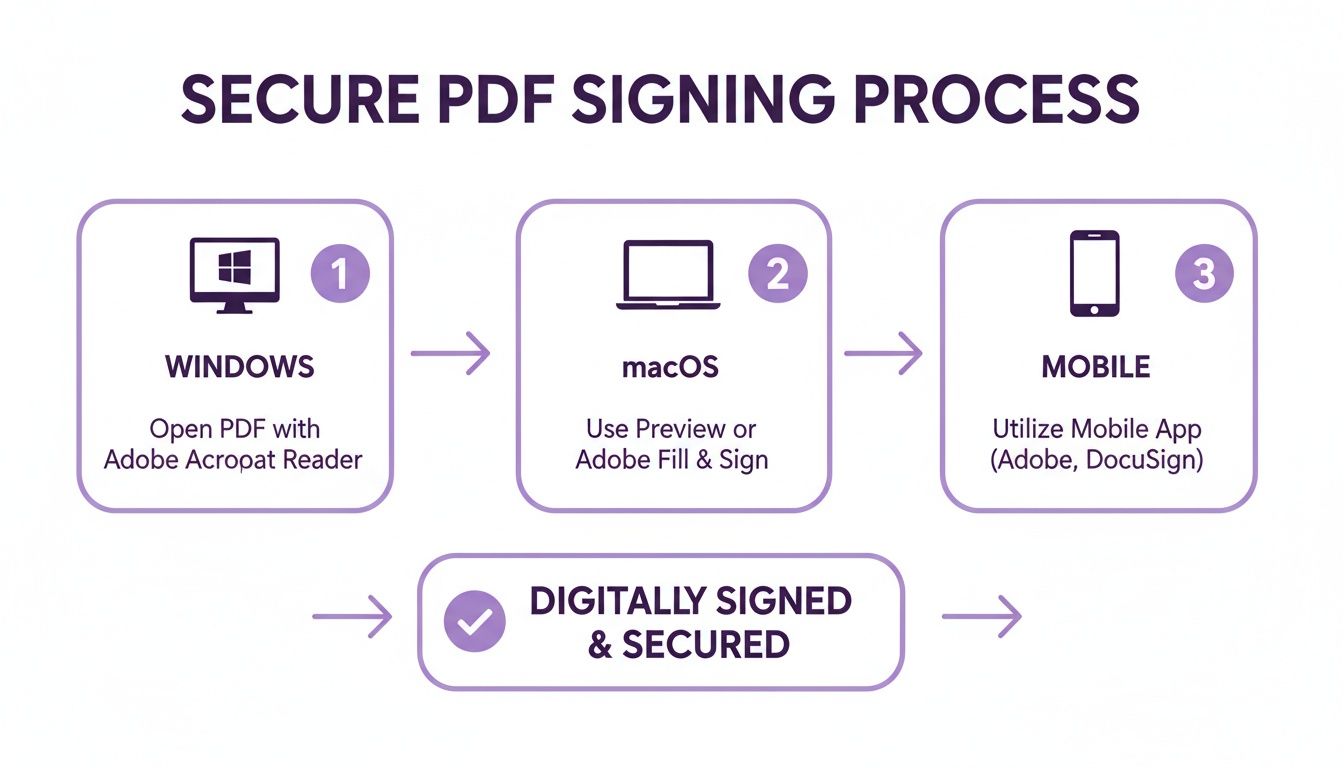
As you can see, a modern workflow brings everything into one place, ensuring the experience is consistent and secure whether your client is signing at their desk or on their phone.
Preparing and Sending Your Document for Signature
The first real step in a professional workflow is getting the document ready. This means turning your standard PDF contract or proposal into an interactive form. Instead of just attaching a static file and hoping the client figures out where to sign, you define the exact spots for signatures, initials, dates, and anything else you need.
With a platform like Payly, for instance, you just upload your PDF. From there, you can literally drag and drop specific fields right onto the document. This is a crucial detail because it eliminates any guesswork and makes sure you get all the required info in the right format.
Here’s a quick look at what that involves:
- Upload your PDF: Start with the finalised agreement.
- Place signature fields: Drag a dedicated signature block to the correct line.
- Add other fields: You can also drop in fields for the date, their printed name, or initial boxes for key clauses.
- Assign signers: Specify who needs to sign where, which is vital for agreements with multiple parties.
Once the document is set up, you send it straight to the client's email from within the platform. They get a secure link to view and sign the document in their web browser, no special software required. It creates a smooth, professional experience that usually gets you much faster responses.
What the Client Sees: A Simple and Guided Process
From your client’s point of view, the whole thing should feel completely effortless. When they click the link you sent, they aren’t just dumped into a generic PDF viewer. Instead, they are walked through the document with clear prompts showing them exactly where to click and sign.
This guided process is one of the biggest advantages over doing it manually. Clients can choose a pre-drawn signature style, type their name in, or even draw their signature using a mouse or their finger on a touchscreen.
I’ve seen it firsthand: documents sent via e-signature platforms are often completed up to 80% faster than those sent the old-fashioned way. This speed is almost entirely thanks to the simple, guided experience that removes all the guesswork and technical hurdles for the signer.
After they've filled in all the required fields, they hit a final confirmation button to apply their legally binding signature. The system then automatically lets you know the document has been signed, and a finalised, fully executed copy is sent to everyone involved.
The Power of the Cryptographic Audit Trail
Now, this is where a professional workflow really shows its value. Every single action taken on that document, from the moment it's sent to the final signature, is recorded in a detailed audit trail. This isn't just a simple log; it’s a cryptographically secured record that serves as powerful, undeniable evidence of the entire signing process.
This audit trail captures all the crucial details, including:
- Who Signed: The signer's name and email address.
- When They Signed: A precise, undeniable timestamp for every action.
- Where They Signed: The IP address from which the document was accessed.
- Document History: A complete log of when the document was created, sent, viewed, and finalised.
This "certificate of completion" is automatically attached to the final signed PDF, making it a self-contained, verifiable record. If a dispute ever comes up, this audit trail provides strong, court-admissible evidence that complies with Australia's Electronic Transactions Act.
For any Australian business, having robust document management software isn't just about staying organised; it’s about compliance and managing risk. This kind of secure record-keeping is fundamental to protecting your business.
Are Digital Signatures Legally Binding in Australia?
It’s the question every Aussie business owner asks before sending off a digital contract: will this actually hold up in a dispute? The short answer is a resounding yes, but with a few important conditions.
Australia’s legal system is well-equipped for the digital age. The Electronic Transactions Act 1999 (Cth) basically gives electronic signatures the same weight as the traditional pen-and-ink kind. This law was a game-changer, allowing business to move at the speed of the internet rather than the speed of a courier.
Of course, it's not a free-for-all. For an e-signature to be legally sound, it has to tick a few boxes to prove it's the real deal.
The Core Pillars of a Valid Signature
The law is built on common sense. It doesn't just accept any old digital scribble. To be considered legally binding, an electronic signature has to meet a few key requirements designed to keep the process fair and reliable for everyone.
It all comes down to three main criteria:
- Identifying the Signer: You have to be able to prove who actually signed the document. Just typing a name might not cut it, which is why platforms that capture details like email addresses and IP data provide much stronger evidence.
- Showing Intent: The person signing must have clearly intended to put their name to the document. This is usually captured when they click a button labelled "I Agree" or "Finalise," demonstrating they understood their action had legal consequences.
- Using a Reliable Method: The technology used has to be trustworthy and appropriate for what’s being signed. For a major client contract, that means using a system that creates a secure, tamper-proof record of the entire signing process.
That last point is where we get into the crucial difference between a simple e-signature and a secure digital signature. You can dive deeper into what is a digital signature in our detailed guide.
Key Takeaway: A secure digital signature offers much stronger legal protection because it’s backed by a cryptographic audit trail. This trail is your independent proof of who signed, when they signed, and that the document is exactly as it was when they signed it.
The Power of an Audit Trail
Think of a basic electronic signature as just an image of a signature placed on a document. It’s easy to forge or copy, and there’s no built-in way to prove who put it there or if someone tinkered with the contract later.
A secure digital signature, on the other hand, creates a unique digital "fingerprint." The moment the document is signed, it's cryptographically sealed. If anyone tries to alter anything, even a single comma, the signature will instantly show as invalid.
This tamper-evident seal, combined with a detailed audit log, is what gives you peace of mind when you’re sending out important documents like:
- Client service agreements
- Project proposals and quotes
- Non-disclosure agreements (NDAs)
- Onboarding paperwork for new contractors
By using a tool that meets these legal standards, you’re not just getting a document signed faster. You're creating a legally sound record that protects your business and lets you operate with confidence, knowing you’re fully compliant with Australian law.
Troubleshooting Common Digital Signature Issues
Even the most reliable tech can have its moments. When you’re up against a deadline, the last thing you want to see is an error message on a PDF you’re trying to sign. But don't stress. Most of these common issues have surprisingly simple fixes. The key is knowing what the error actually means so you can sort it out quickly and get on with your day.
This section is your go-to guide for navigating those frustrating little hiccups. We’ll walk through why a signature might suddenly show up as 'invalid', what to do when a signature field just won't cooperate, and a few other common snags I've seen pop up time and again.

The Dreaded "Invalid Signature" Warning
Seeing a big red "X" or a warning message next to a signature is enough to make anyone a bit nervous. But in my experience, it's rarely a sign of a technical glitch. In almost every case, it means one simple thing: the document was changed after it was signed.
Think of a digital signature as a cryptographic seal on the document. If someone alters anything at all, even just fixing a typo or adding a comment, that seal breaks. The signature becomes invalid. This isn't a bug; it’s a crucial security feature working exactly as intended.
So, if a document lands in your inbox with this warning:
- Don't trust it. That warning is there to protect you.
- Get in touch with the sender straight away. Let them know what you're seeing and ask for a fresh, untouched copy to be sent over.
- Check your own process. If you were the one who signed it and then made a quick edit, you’ll have to remove your signature, finalise the document, and then re-sign it as the absolute last step.
Why Can’t I Click the Signature Field?
Here's another classic problem: you receive a PDF, you can see the spot where your signature needs to go, but you just can't click on it. This is usually down to one of two things.
First, the document might be "flat." This means the person who created it just typed a line of underscores _______ instead of inserting a proper, interactive signature field. If this is the case, you can often use the "Add Signature" or "Fill & Sign" tool in your PDF reader to manually place your saved signature right on top of the line.
The other likely culprit is the document’s security settings. The creator can lock down a PDF to prevent changes, and sometimes that includes signing.
Pro Tip: In Adobe Acrobat, you can check this by going to File > Properties and then clicking the Security tab. If it says "Signing: Not Allowed," you'll have to go back to the sender and ask them to send a new version with the correct permissions.
My Signature Vanished After I Saved the File
This one can be a real head-scratcher. You sign the document, save it, and feel a sense of accomplishment. But when you reopen it, your signature is gone. This almost always comes down to using an incompatible PDF viewer or outdated software.
Some of the more lightweight, free PDF readers (or even your web browser's built-in viewer) don't fully support the complex layers that digital signatures use. They might show the signature on your screen but then fail to embed it properly when you save.
To avoid this, stick with proven tools.
- Always try to use a trusted application like Adobe Acrobat Reader or the native Preview app on a Mac for the most reliable results.
- Make sure your software is fully updated. Updates often include critical bug fixes for things just like this.
- Try using the “Save As” command to create a brand new file. I’ve found this can sometimes lock in the signature more effectively than a standard “Save.”
Common Questions About Signing PDFs Digitally
Even after you've mastered how to digitally sign a PDF, a few practical questions often come up. It's completely normal to wonder about the finer details, especially when you're dealing with important client contracts or official paperwork. This section is all about giving you quick, clear answers to the most common queries we hear from Australian businesses.
Think of it as your go-to reference for clearing up any lingering confusion. We'll tackle the real difference between signature types, whether you need to pay for a tool, and how to handle documents you get back from others.
Electronic vs Digital Signatures: What's the Real Difference?
This is easily the question we get asked most, and it's a crucial one. People often use these terms as if they mean the same thing, but from a legal and security perspective, they're worlds apart. Getting this right is key to protecting your business.
An electronic signature is a really broad term. It covers any electronic process that shows you agree to something. It could be as simple as typing your name into a form, pasting a scanned image of your signature, or even just ticking an "I agree" box. It shows intent, but it offers very little security and can be tough to verify later on.
A digital signature, however, is a specific, highly secure type of electronic signature. It uses a unique, certificate-based digital ID to create an encrypted, tamper-evident seal on the document. This process gives the document a unique 'fingerprint'. If anyone changes even a single character after it's been signed, the signature will immediately show it's been tampered with, making it far more secure and legally robust.
For a deeper look, check out our guide on the differences between digital and electronic signatures.
Can I Really Sign a PDF for Free?
Yes, you absolutely can. For one-off personal use, the free tools out there are perfectly fine. In fact, you probably already have software that can get the job done without costing a cent.
- Adobe Acrobat Reader: The free version lets you create and apply a valid digital signature on both Windows and Mac.
- macOS Preview: This app is built right into every Mac and has a fantastic, easy-to-use signature feature.
- Mobile Apps: Both iOS and Android have built-in markup tools, or you can use free apps like Adobe Reader for signing documents when you're out and about.
The limitations of free tools quickly become obvious once you need to send documents to clients for their signature. For any serious business workflow, a dedicated platform is the way to go. It gives you essential features like sending documents, tracking their status in real-time, and generating the secure audit trails required for legal compliance in Australia.
How to Verify a Signature on a PDF You Receive
So, you've got a signed document back from a client. How can you be sure the signature is legit? Thankfully, verifying a digital signature is straightforward in most PDF readers.
Just click on the signature field itself. This will usually pop up a ‘Signature Validation Status’ window. This little panel gives you all the crucial information needed to confirm its authenticity. You should see the signer's identity, details about the certificate's validity, and a clear confirmation of whether the document was modified after it was signed.
A green checkmark or a 'Signature is Valid' message is your all-clear. It confirms the signer's identity has been verified and the document's integrity is intact.
Are Digital Signatures Accepted by the ATO?
Yes, for the most part, they are. Australian government bodies, including the Australian Taxation Office (ATO), generally accept electronic and digital signatures that meet the criteria laid out in the Electronic Transactions Act 1999.
The key requirements are that the method you use reliably identifies the person signing and clearly indicates their approval of the information in the document. Using a professional platform that provides a complete, verifiable audit trail is the best way to ensure your documents meet these standards for compliance.
Ready to build a secure and professional signing workflow for your business? Payly combines PDF e-signatures with invoicing, time tracking, and document management in one platform designed for Australian service businesses. Start your free 14-day trial and see how easy it is to get your documents signed faster.
Payly Team
Sharing insights and strategies to help service businesses thrive. Follow Payly for more tips on time tracking, invoicing, and business operations.
Related Articles
Ready to streamline your business?
Join thousands of freelancers and agencies who use Payly to track time, send invoices, and get paid faster.